# Garmin MCP Server: 3 Easy Steps to Connect Claude to Your Data
A garmin mcp server connects Claude to your Garmin Connect data in 3 steps. Free, open source, MFA supported. Ask training questions in plain English.
Topic: Claude & MCP
Published: 2026-07-18
Updated: 2026-07-29
URL: https://productivitytech.io/garmin-mcp-server/
A garmin mcp server connects AI assistants like Claude directly to your Garmin Connect data — activities, sleep, heart rate, and training status — so you can ask questions about your training in plain English. Instead of clicking through five dashboards to compare last week’s sleep against Tuesday’s interval session, you type one sentence and get an answer that pulls from all of it at once.
The Garmin Connect app is fine for looking at one metric at a time. It is not built for reasoning across metrics. Wanting to know whether your resting heart rate has crept up alongside a heavier training block means opening two screens and doing the comparison in your head, or exporting CSVs and pulling up a spreadsheet — friction that means most of us never actually do it. I built a free, open-source server to remove that friction: three steps to set up, MFA supported, and then your training data is just something you can talk to.
## What Is a Garmin MCP Server?
MCP, the [Model Context Protocol](https://modelcontextprotocol.io), is an open standard that lets an AI assistant call external tools and read external data through a common interface. A garmin mcp server is a small bridge program that speaks MCP on one side and the Garmin Connect API on the other, so an assistant like Claude can request your activities or sleep data the same way it requests anything else it has tools for. If you have not built one of these yourself before, our [MCP server tutorial](/build-mcp-server-tutorial/) walks through the pattern from scratch.
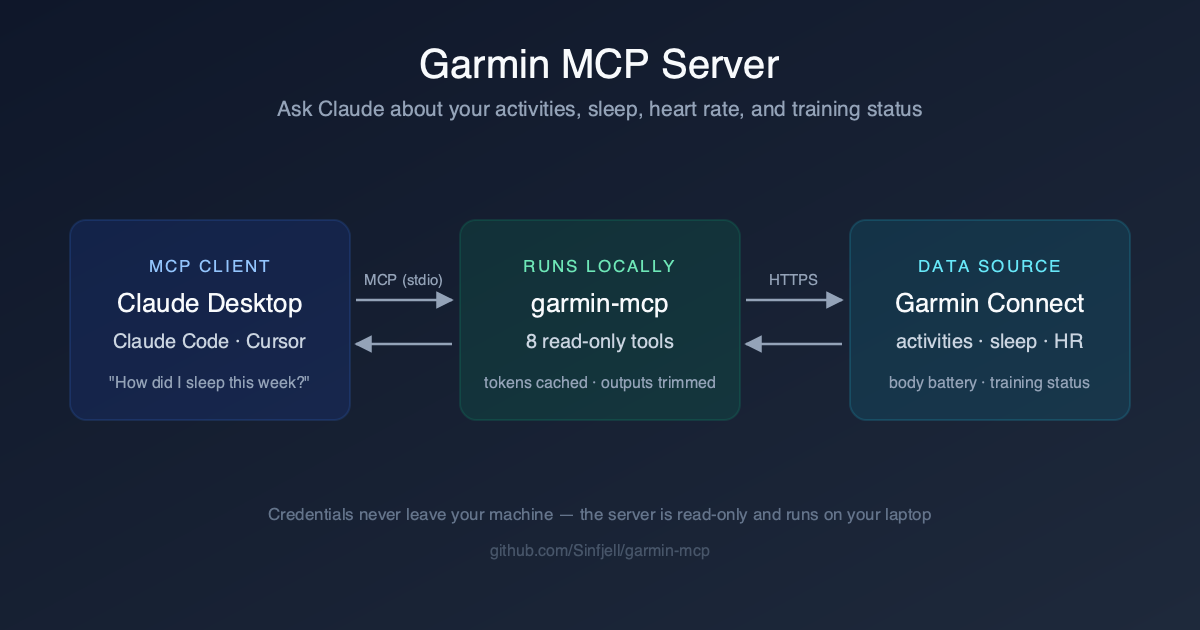
The server is read-only by design. It fetches data from Garmin and hands it to your MCP client — it never writes anything back to your Garmin account, changes settings, or deletes activities. It is a data source, not a remote control.
The Garmin MCP server runs locally: your MCP client talks to it over stdio, and it talks to Garmin Connect over HTTPS.
## What Can You Ask Your Garmin Data?
Once the server is connected, you are not limited to whatever chart Garmin decided to build. You can ask anything the underlying data supports, in whatever framing you actually think in. A few examples I use regularly:
- “How has my sleep trended over the last two weeks?”
- “What was my pace across my last five runs?”
- “Is my resting heart rate going up or down this month?”
- “What does my body battery look like before my hard sessions versus my easy ones?”
- “What was my total running volume this week compared to last week?”
- “Am I recovered enough to run intervals today?”
That last question is the one a dashboard cannot answer, because it requires cross-metric reasoning: recent training load, last night’s sleep score, this morning’s resting heart rate, and body battery all weighed together. A chart shows you four numbers. An LLM with access to all four can actually reason about what they mean together, and explain why.
## The 8 Tools Inside the Garmin MCP Server
The server exposes eight tools. Each one maps to a specific Garmin Connect endpoint and returns a focused slice of data rather than a full raw dump.
| Tool | What it returns |
| --- | --- |
| list\_recent\_activities | Your most recent activities with type, distance, duration, and pace |
| get\_activity\_details | Full detail for a single activity: splits, heart rate zones, elevation |
| list\_activities\_by\_date | Activities within a specific date range |
| get\_daily\_stats | Steps, calories, and intensity minutes for a given day |
| get\_sleep | Sleep stages, sleep score, and total duration for a given night |
| get\_heart\_rate | Resting heart rate and daily heart rate summary |
| get\_body\_battery | Body Battery charge and drain levels through the day |
| get\_training\_status | Training load, VO2 max estimate, and recovery time |
Every response from the server is token-trimmed before it reaches the model. Per-minute heart rate arrays, second-by-second GPS samples, and other high-resolution noise get stripped out, leaving the summarized fields that actually answer a question. This matters more than it sounds: fitness APIs are notorious for returning bloated payloads, and I wrote up the general problem — and why it is worth solving deliberately rather than ignoring — in [lessons from building custom MCP servers](/custom-mcp-server-lessons/). Untrimmed, a single activity query can burn through a meaningful chunk of your context window before the model has said a word.
## Prerequisites
Before you install it, make sure you have the following:
- A Garmin account with any Garmin device syncing to Garmin Connect
- Python 3.10 or newer
- `uv` installed — one line: `curl -LsSf https://astral.sh/uv/install.sh | sh`
- An MCP client: Claude Desktop, Claude Code, or Cursor
## Set Up the Garmin MCP Server in 3 Steps
No cloning, no virtual environments to manage by hand. `uv` handles the Python environment for you, and the whole setup is three steps.
### Step 1: Authenticate Once
Run the auth command and log in with your Garmin credentials:
```
uvx --from git+https://github.com/Sinfjell/garmin-mcp garmin-mcp-auth
```
It prompts for your email and password. If your account has multi-factor authentication turned on, it prompts for the code too — this trips up a lot of DIY Garmin scripts, so it was a non-negotiable for me to get right. Once you authenticate, the resulting session tokens are cached locally at `~/.garminconnect`. Your password itself is never stored — only the tokens the API gives back after login, the same as a browser session cookie.
### Step 2: Add the Server to Your MCP Client
For Claude Desktop, add this to your `claude_desktop_config.json`:
```
{"mcpServers":{"garmin":{"command":"uvx","args":["--from","git+https://github.com/Sinfjell/garmin-mcp","garmin-mcp"]}}}
```
For Claude Code, it’s a single command:
```
claude mcp add garmin -- uvx --from git+https://github.com/Sinfjell/garmin-mcp garmin-mcp
```
Cursor follows the same pattern — same command and args, dropped into Cursor’s own MCP config format. The exact snippet is in the repo README if you want to copy it directly.
### Step 3: Ask Your First Question
Restart your MCP client so it picks up the new server, then ask something simple: “How did I sleep this week?” You’ll see the assistant call the `get_sleep` tool, the data comes back from Garmin, and Claude analyzes it and answers in a sentence or two instead of a table of raw numbers. That’s the whole loop — no dashboards, no exporting, no manual comparison.
## New: Remote Mode — Ask Your Garmin Data From Your Phone
Everything above assumes a local server talking over stdio to a desktop MCP client. That’s still the default — nothing changes for existing setups. But `garmin-mcp` now also supports `--transport streamable-http`, plus `--host`, `--port`, and `--path` flags, so you can run it as a hosted service instead of a local process. That’s what makes a custom connector on claude.ai possible: once it’s added, your Garmin data is queryable from Claude on your phone and in the browser, not just from a desktop client on the same machine as the server. “How did I sleep last night?” from your pocket is the actual point of this.
Run it like this:
```
uvx --from git+https://github.com/Sinfjell/garmin-mcp garmin-mcp --transport streamable-http --port 8765 --path //mcp
```
Before hosting, run `garmin-mcp-auth` once directly on the host so a session token gets cached there — same command as Step 1 above. Reuse that token; don’t design anything that logs in repeatedly. Garmin rate-limits datacenter IPs — two of three login strategies I tried from a Hetzner IP came back HTTP 429. The fallback path worked, but token reuse sidesteps the problem entirely.
To add it on claude.ai:
1. Go to Settings → Connectors → Add custom connector
2. Paste the URL you’re hosting the server at, including your secret path
3. Save — Claude on any device you’re logged into can now call it
Be honest about the security model here: `--path` is a lightweight secret, not authentication — anyone with the URL can query your training data, no login required. Use a long, random path, put TLS and a reverse proxy in front of it, and don’t post the URL anywhere public. The server itself stays read-only regardless, the same guarantee as the local setup.
One gotcha you will hit if you skip this: the MCP Python SDK’s DNS-rebinding protection is on by default, and it only accepts localhost Host headers with no Origin header at all. Behind an nginx reverse proxy, that means claude.ai’s connector gets rejected with a 421 or 403 while a plain curl test against the same endpoint passes fine. Rewrite both headers in the proxy config:
```
proxy_set_header Host "127.0.0.1:8765";
proxy_set_header Origin "";
proxy_buffering off;
proxy_read_timeout 3600s;
```
Worth saying plainly: one hosted instance is one Garmin account — your tokens, your secret URL. This isn’t a shared service. If someone else wants this, the model is that they self-host their own instance, not that they get a login to yours.
## How I Use It for Training Analysis
I built this for my own runs, and the two ways I actually use it week to week are narrow and specific. On a weekly review, I ask Claude to compare my training load against sleep quality over the same window — did the heavier week come with worse sleep, or did sleep hold up? Before a hard session, I check body battery and resting heart rate together and ask whether today looks like an interval day or an easy day. Both are the kind of quick, ad-hoc question that used to mean opening three tabs.
I previously synced this same data into a Notion dashboard for a running intelligence stack — full write-up is in [building a Notion, Garmin, and Strava running intelligence stack](/notion-garmin-strava-running-intelligence-stack/). The MCP route replaces most of that pipeline for one-off questions: I no longer need a dashboard built in advance for every question I might ask, because the assistant can query the data directly when the question comes up. If you’re automating parts of your own workflow with Claude Code the way I do for this, [Claude Code automation](/claude-code-automation/) covers the broader pattern.
Garmin isn’t the only place I’ve applied this. I built the same MCP pattern for client project data in [a Zoho Projects MCP server](/zoho-projects-mcp-server/), for the same reason: once your data is one plain-English question away, you stop building one-off dashboards for questions you might ask once.
## Security, Privacy, and the Unofficial API
Your credentials never leave your machine. The garmin mcp server runs locally, authenticates once, and caches session tokens in `~/.garminconnect` — nothing is sent to a third-party service, and there is no cloud component holding your login. That’s the default behavior; remote mode, covered above, is an explicit opt-in with a different security model. The server is read-only by design either way: no tool in it writes to, edits, or deletes anything in your Garmin account.
Under the hood it uses [python-garminconnect](https://github.com/cyberjunky/python-garminconnect), a well-maintained community library that talks to Garmin’s mobile API. Garmin does not publish an official consumer API for this kind of access, so every tool in this space — including this one — is built on the same unofficial foundation. I want to be upfront about that rather than paper over it. Normal personal use, a handful of requests a day for your own training data, is a low-risk pattern. It is still not an officially sanctioned integration, and I’d rather say that plainly than pretend otherwise.
## Garmin MCP Server Alternatives
This is not the only project in this space, and it doesn’t need to be. Two solid open-source options exist if you want broader coverage: Taxuspt/garmin\_mcp is a Python server with 110+ tools covering roughly 90% of the underlying library, and Nicolasvegam/garmin-connect-mcp is a TypeScript server with 61 tools installed via npx. Both support MFA. Both are worth a look if you want exhaustive access.
What I optimized for is the opposite end of that trade-off. Every tool a server registers costs context-window tokens before you ask a single question — 110 tool definitions is a real tax on every conversation. And raw Garmin payloads are heavy: a single detailed activity can run 50KB or more. This repo keeps 8 focused tools and trims every response down to the fields that answer training questions, so queries stay fast and cheap. If you want the smallest context footprint for asking training questions in plain English, that’s the gap this fills.
| Project | Language | Tool count | Focus |
| --- | --- | --- | --- |
| Sinfjell/garmin-mcp | Python | 8 | Minimal context footprint, token-trimmed responses |
| Taxuspt/garmin\_mcp | Python | 110+ | Near-complete API coverage, raw data |
| Nicolasvegam/garmin-connect-mcp | TypeScript | 61 | Broad coverage via npx |
## Frequently Asked Questions
## Get the Garmin MCP Server
The code is free, open source, and up on GitHub at [github.com/Sinfjell/garmin-mcp](https://github.com/Sinfjell/garmin-mcp). If it’s useful to you, a star helps other runners find it. Issues and pull requests are welcome — I built this for my own training analysis, but I’d rather it get better for everyone using it than stay a one-person tool.