# Notion replaceAll Automation: 7 Smart Self-Erasing Triggers
Build a Notion replaceAll automation that triggers from task text and erases itself. 7 smart patterns: today, #na, #wf, Siri Shortcuts. Copy the formulas.
Topic: Notion
Published: 2026-04-14
Updated: 2026-07-29
URL: https://productivitytech.io/notion-replaceall-automation/
A **Notion replaceAll automation** triggers an action when a task title contains a specific string, runs your actions (set status, set date, add a tag), then erases the trigger string from the title so the task reads cleanly. It turns your task title into a command line. Type `today` into a new task and the task auto-schedules itself — with `today` removed from the title.
This guide shows 7 self-erasing triggers you can build with a Notion replaceAll automation: one-tap `today`, GTD hashtags like `#na` and `#wf`, priority markers, and an iOS Siri Shortcut to create tasks by voice.
Notion replaceAll automation panel with Name contains today trigger and replaceAll formula.
## What is a Notion replaceAll automation?
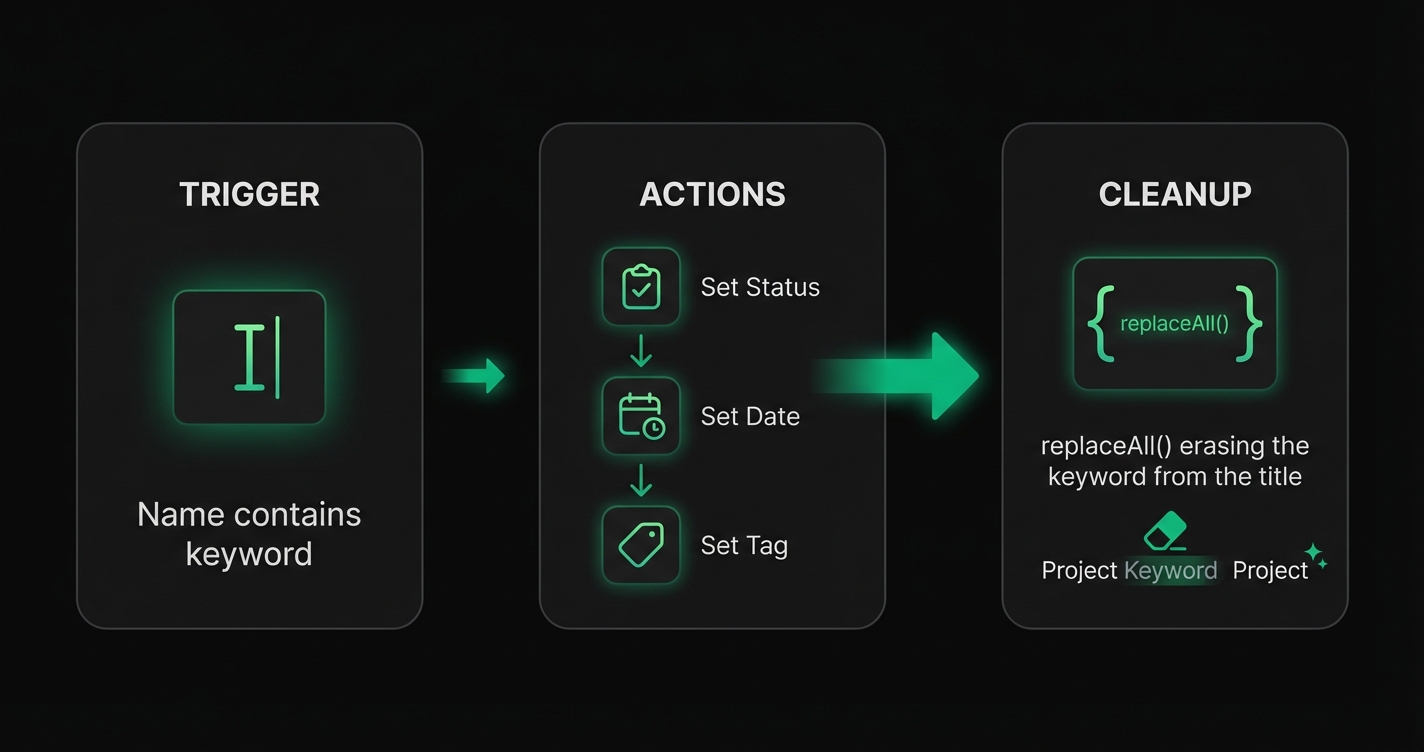
A Notion replaceAll automation is a database automation that listens for a keyword in the Name (title) property, performs one or more actions, then uses the `replaceAll()` formula to strip the keyword out of the title.
Diagram of Notion replaceAll automation anatomy with trigger, actions, cleanup.
The anatomy is always the same:
1. **Trigger:** `Name contains ""`
2. **Actions:** Set Status, Set Date, Set Select/Multi-select — whatever the keyword represents
3. **Clean-up:** `Define variable → replaceAll(Trigger page.Name, "", "")` → `Set Name to that variable`
Without the clean-up step, the keyword stays in the title forever and the automation re-fires on every edit. The `replaceAll` call is what makes the trigger self-erasing.
## Use case 1: Type "today" to auto-schedule a task
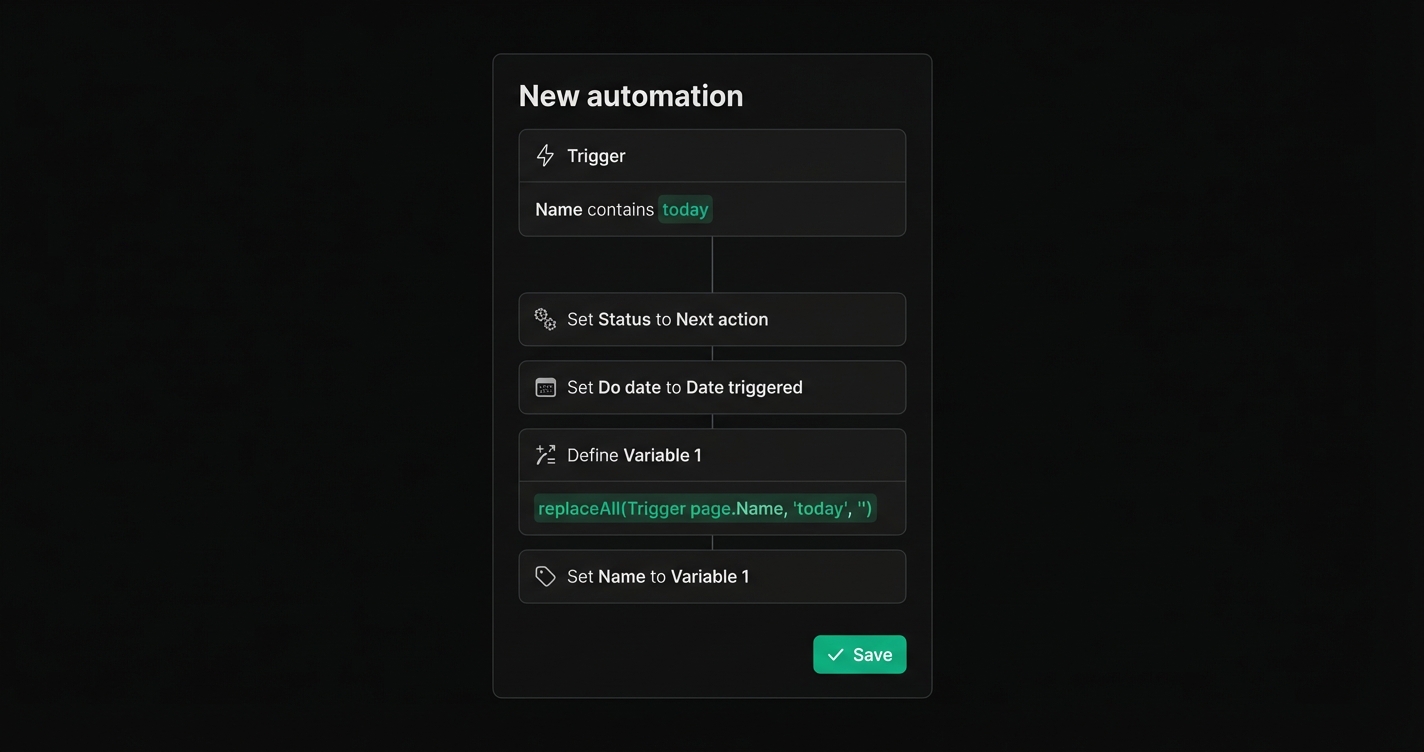
Open any Notion task database, type `today` anywhere in the title, and the task schedules itself for today's date and moves to Next action status. The word `today` disappears the moment the automation fires.
**Automation config:**
- Trigger: `Name contains "today"`
- Action 1: `Set Status to "Next action"`
- Action 2: `Set Do date to Date triggered`
- Action 3: `Define Variable 1 = replaceAll(Trigger page.Name, "today", "")`
- Action 4: `Set Name to Variable 1`
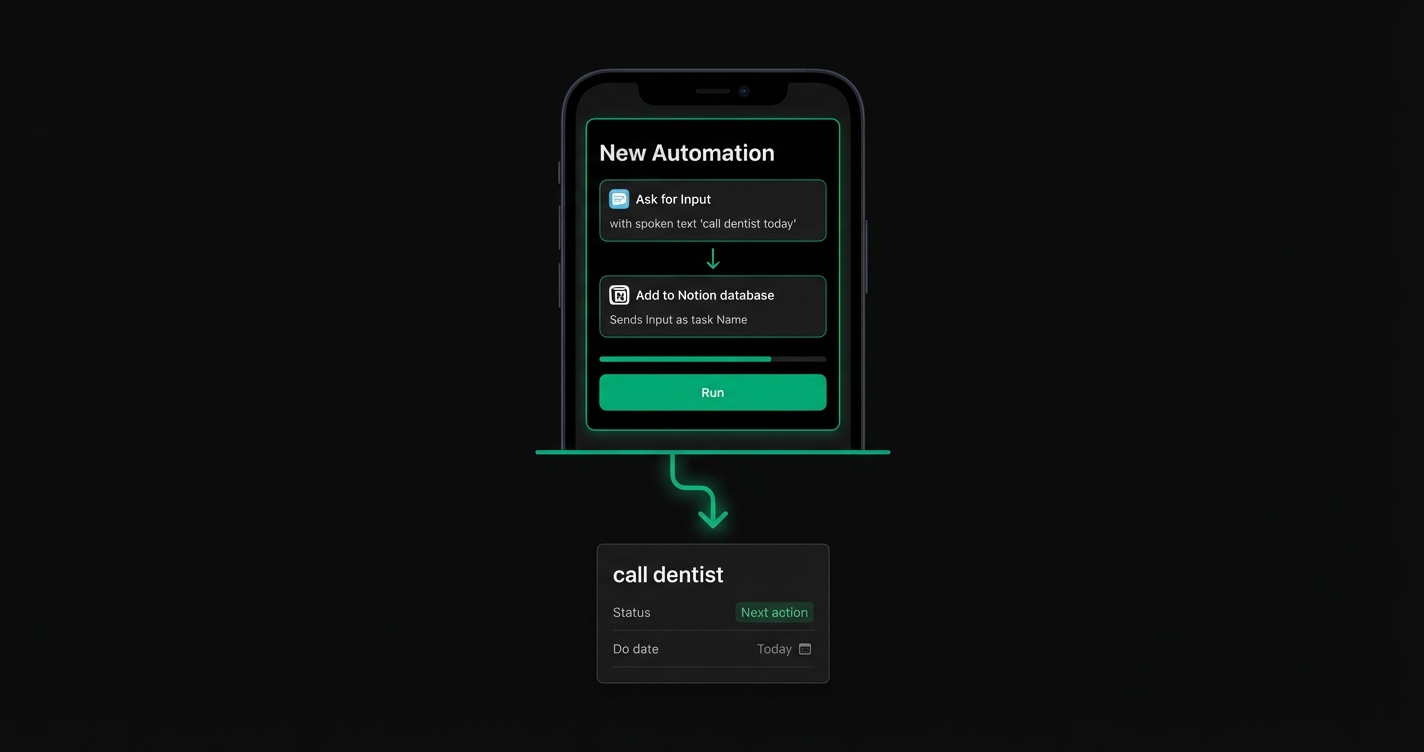
Combine this with an **iOS Siri Shortcut** that calls Notion's *Add to database* action and you get voice-created tasks that auto-schedule. Tell Siri *"Add task call dentist today"* — the task lands in your Notion inbox with Do date = today and clean title *"call dentist"*.
iOS Siri Shortcut creating a Notion task that triggers a replaceAll automation.
For the shortcut itself, use the official [Notion iOS Shortcuts integration](https://www.notion.com/help/guides/using-notion-with-apple-shortcuts) and pass the spoken input as the task Name. The Notion replaceAll automation handles the rest server-side.
## Use case 2: Hashtag triggers for GTD status
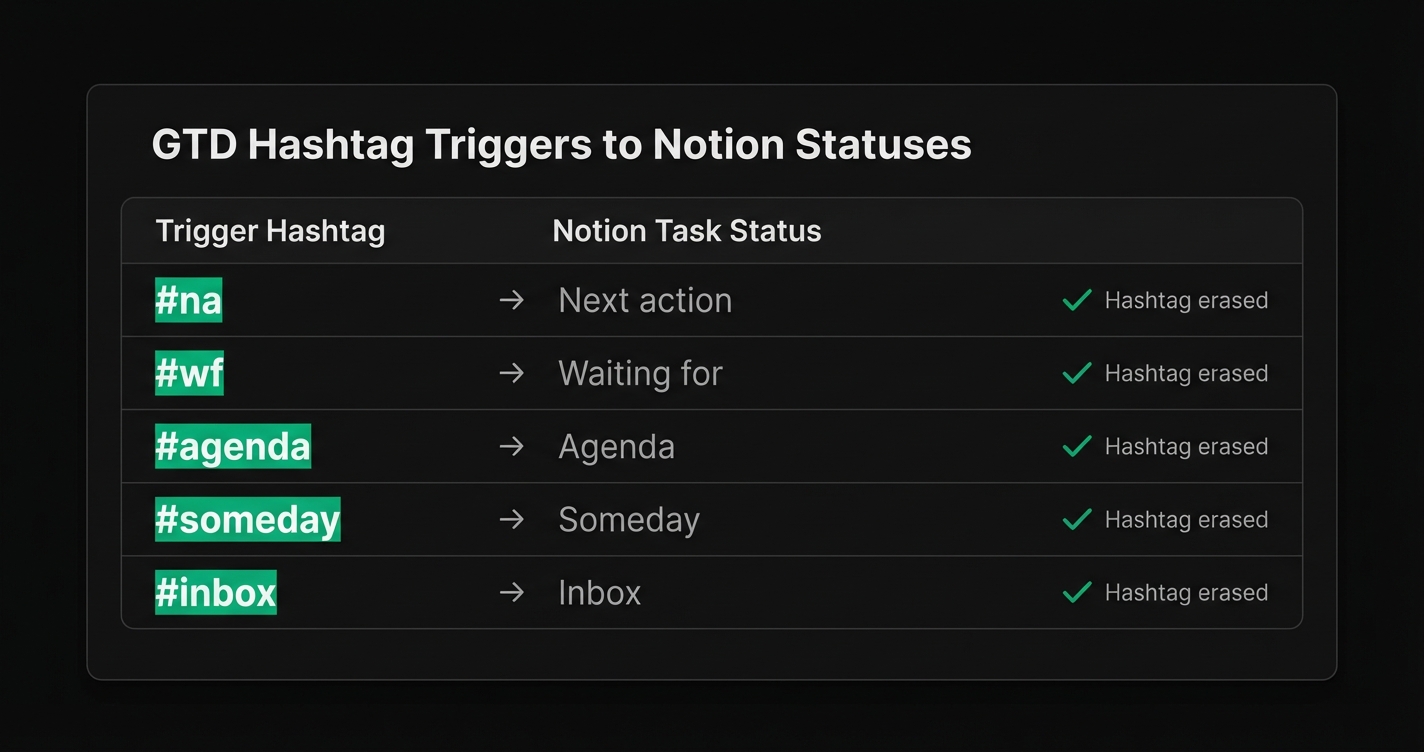
If you run a [Getting Things Done](https://gettingthingsdone.com/) workflow, your tasks need statuses like *Next action*, *Waiting for*, and *Agenda*. Selecting them from a dropdown is friction. A Notion replaceAll automation lets you set the status by typing a hashtag.
| Type this | Status set | Hashtag erased |
| --- | --- | --- |
| `#na` | Next action | ✓ |
| `#wf` | Waiting for | ✓ |
| `#agenda` | Agenda | ✓ |
| `#someday` | Someday | ✓ |
| `#inbox` | Inbox | ✓ |
GTD hashtag triggers mapped to Notion task statuses via replaceAll automation.
Build one automation per tag with the same three-step pattern: trigger → set status → `replaceAll(Trigger page.Name, "#na", "")` → set Name. Five automations, zero friction.
## How to build your first Notion replaceAll automation
Here is the step-by-step HowTo for one self-erasing trigger. Once you have built one, cloning it for the rest takes 30 seconds each.
1. **Open the database automations panel.** In any Notion database, click the ⚡ icon in the top right and select *New automation*.
2. **Add the trigger.** Choose *Page property edited* → *Name* → *contains* → type your trigger string (e.g. `today`).
3. **Add the primary action.** Click *\+ Add action*. Pick the outcome: *Edit property → Status → Next action*, or *Edit property → Do date → Date triggered*.
4. **Define the clean-up variable.** Click *\+ Add action* → *Define variables*. Name it `Variable 1`. Set the formula to `replaceAll(Trigger page.Name, "today", "")`.
5. **Apply the cleaned name.** Add one more action: *Edit property → Name → Variable 1*.
6. **Turn the automation on** and test by typing `today` in a new task.
That is it. Your first Notion replaceAll automation now fires every time `today` lands in a task title, schedules the task, and erases the trigger word.
## Advanced Notion replaceAll automation patterns
Once the basic pattern clicks, stack more triggers for power use:
- `**.async**` — Set Medium = Async, strip `.async` from the name. Useful for tagging communication channel on the fly.
- `**@alex**` — Set Assignee = Alex, strip `@alex` from the name. Chain multiple assignee triggers for your team.
- `**!!**` — Set Priority = High, strip `!!`. Use `!!!` for Urgent, `!` for Low.
- `**.30m**` — Set Estimate = 30 minutes, strip `.30m`. Great for time-blocking.
- **Chained replaceAll** — Nest calls: `replaceAll(replaceAll(Trigger page.Name, "#na", ""), "today", "")` — handles two triggers in one automation if both fire.
Each pattern is one more Notion replaceAll automation on the same database. They compose cleanly because each one only touches its own trigger string.
## Common pitfalls
Three things break a Notion replaceAll automation more often than anything else:
- **Case-sensitivity.** `replaceAll` is case-sensitive. `Today` will not match a trigger that looks for `today`. Normalize with `replaceAll(lower(Trigger page.Name), "today", "")` if voice input gives you capitalized words.
- **Leading and trailing whitespace.** After stripping the trigger, you are left with a stray space. Wrap the result in `trim()` inside your variable: `trim(replaceAll(Trigger page.Name, "today", ""))`.
- **Overlapping triggers.** If `today` and `to` are both triggers, typing `today` fires both and strips the wrong text. Make trigger strings distinct — prefer hashtags or periods (`#na`, `.async`) to avoid collisions with normal English words.
## FAQ
## Start building your self-erasing shortcuts
A Notion replaceAll automation costs 2 minutes to build and pays back every single time you create a task. Pick one trigger that reduces friction for you right now — `today`, `#na`, `!!` — and build it. Once you have one, cloning it for the next five is trivial.