Wispr Flow for Windows: Requirements, Setup and What's Different
On this page
Checked 18 November 2026 against Wispr’s supported devices and system requirements, Windows installer, MDM deploy, first dictation, and wisprflow.ai/pricing. Requirements change — re-check those pages before you buy hardware around Flow.
I use Flow on a Mac; everything Windows-specific below comes from Wispr’s own docs, linked inline. For day-to-day product context from that Mac use, see Wispr Flow Review.
Short answer
Wispr Flow for Windows is real: dictation on Windows 10 or 11, x64, with about 8 GB RAM recommended and ~200 MB free. Windows on ARM / Snapdragon is unsupported. Wispr’s plans (Free, Pro, Growth, Enterprise) on Wispr’s pricing page list dictation on Mac, Windows, iPhone and Android — Free is $0 with no credit card required as of this check; plan detail is in Wispr Flow pricing.
Default push-to-talk on Windows is Ctrl + Win per Wispr’s first dictation article (some first-time Windows installs get Caps Lock instead). Shortcuts are changeable in Settings → General → Shortcuts.
Try Wispr Flow on Windows — start from Wispr’s free plan if your PC is x64 Windows 10/11.
Disclosure: this article contains affiliate links to Wispr Flow. If you subscribe through them, I earn a commission at no extra cost to you. Facts below are from Wispr’s public help and pricing pages, checked 18 November 2026. Nobody at Wispr reviewed this article before publication.
Requirements at a glance
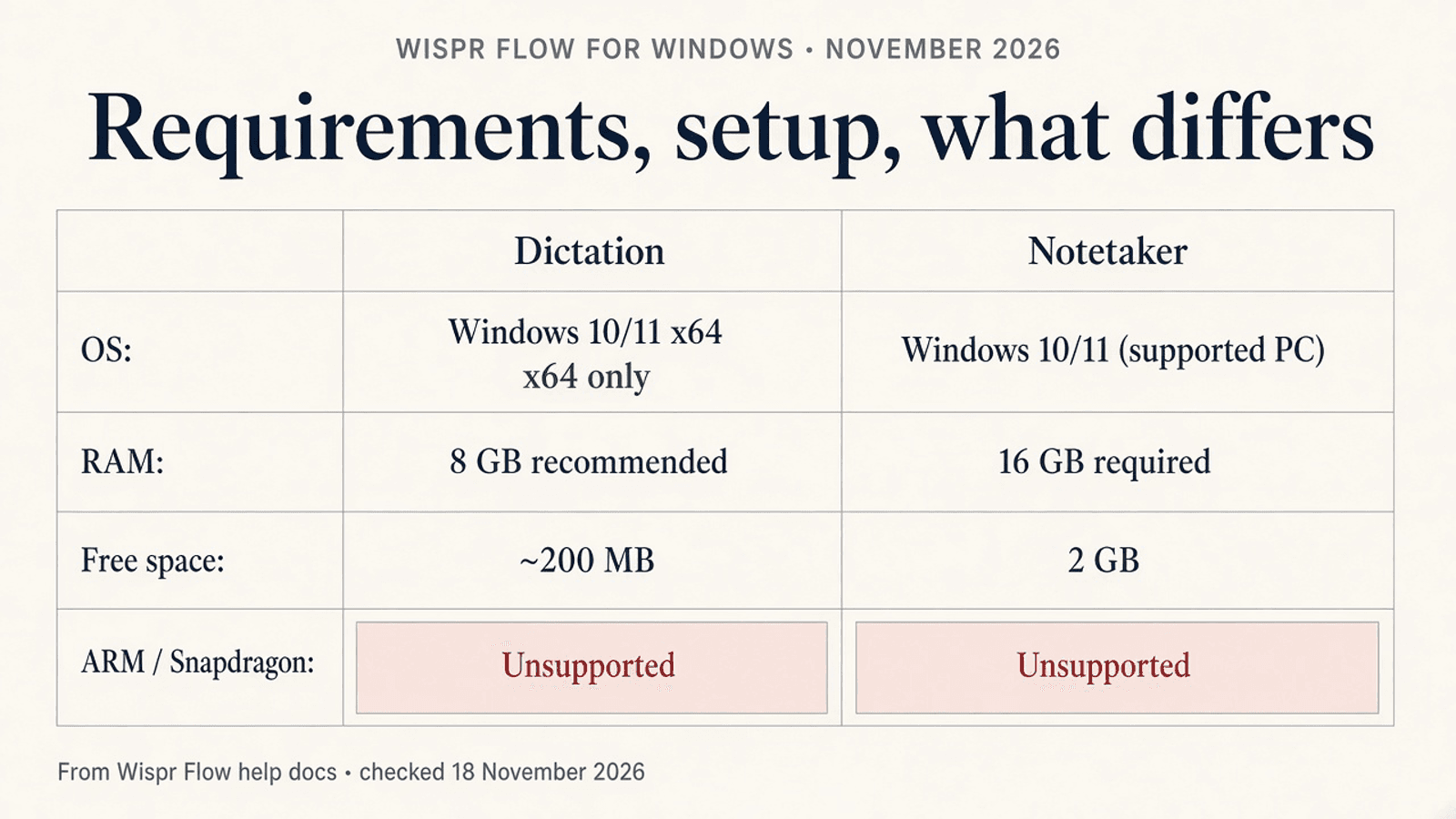
Source: Supported devices and system requirements (18 November 2026). A working microphone is required on every platform.
| Windows dictation | Windows Notetaker | |
|---|---|---|
| OS / CPU | Windows 10 or 11; x64 processor | Windows 10 or 11 on a supported Windows PC |
| Memory | 8 GB RAM recommended | 16 GB RAM required |
| Free storage | About 200 MB | 2 GB free required |
| ARM / Snapdragon | Unsupported (“Unsupported Windows Architecture”) | Same architecture rule applies |
Wispr notes that a PC that can run dictation may not meet Notetaker’s higher requirements, and that enterprise subscriptions, plans, or organization settings can restrict Notetaker even on a compatible PC. Platforms listed overall: Mac, Windows, iPhone, and Android. iPad, Linux, Chromebooks, virtual machines, and remote desktop environments are not supported.
Windows on ARM / Snapdragon (Copilot+ PCs)
If you bought a Copilot+ or other Windows-on-ARM / Snapdragon laptop hoping for Flow: Wispr’s requirements article is explicit — Windows on ARM and Snapdragon are unsupported. A non-x64 build shows “Unsupported Windows Architecture” and quits. The Windows installer article adds that re-running the same installer will not fix it: you need a compatible x64 Windows device and an x64 build. Wispr’s MDM deploy guide repeats x64 required; ARM unsupported for managed Windows.
What to do (docs only): use an x64 Windows 10/11 machine that meets the RAM/storage row for dictation or Notetaker, or stay on another platform Wispr lists (Mac / iPhone / Android). I am not claiming a workaround — Wispr does not document one on those pages.
Installing it: per-user vs machine-wide
Per-user (typical download): From Installing Wispr Flow on Windows (18 November 2026):
- Available on Windows 10 or 11 (x64 only).
- Standard download installs for your user account without administrator permissions, under
%LOCALAPPDATA%\WisprFlow. - Official filenames can be
WisprFlowInstaller.exeorWispr Flow Setup-v.exe; both are legitimate per Wispr. - Releases are signed by Wispr AI, Inc. Downloads from wisprflow.ai should not show “Unknown Publisher.”
- SmartScreen can still show “Windows protected your PC” on a newly published release; Wispr says continue through that prompt only for an official download.
- After install, launch from Start or the desktop shortcut; onboarding must finish before dictation and Notetaker are available.
- New installs enable Launch app at login automatically; change it under Settings → System → App settings. Flow can keep running in the system tray when you close the hub.
Machine-wide / IT: The same installer article says IT-managed, machine-wide installs in Program Files require administrator rights. Wispr’s Deploy Wispr Flow via MDM guide (Enterprise) points Windows admins at the machine-wide MSI (not the per-user Setup.exe / Setup.msi), installed under C:\Program Files (x86)\Wispr Flow\, with microphone privacy left enabled. Short mention only here — follow that guide if you are rolling out for a fleet.
Microphone permission and the “paste” admin message
Windows setup, per the requirements article:
- Setup requests only Microphone, not Accessibility (unlike Mac).
- Open Settings from Flow; Microphone is under Privacy & security (Windows 11) or Privacy (Windows 10).
- Enable both Microphone access and Let desktop apps access your microphone.
- Until both toggles are on, Flow treats the permission as not granted. A blocked recording can show “Microphone access is disabled” with the same Open Settings recovery.
- For “Update admin settings to paste!”, Wispr says run Flow as Administrator.
If Flow still will not detect the mic after those steps, Wispr’s same article suggests testing the mic in another app, rechecking permissions, then contacting support with platform, OS version, device model, exact error, and what you tried. That is the documented wispr flow windows not working path for mic/paste issues — not a performance claim from me.
What’s different from the Mac version
Doc-backed differences (same requirements / installer / first-dictation pages, 18 November 2026):
| Topic | Mac (docs) | Windows (docs) |
|---|---|---|
| Permissions for dictation setup | Microphone and Accessibility | Microphone only (no Accessibility) |
| Architecture gate | Unsupported macOS / wrong Intel-vs-Apple Silicon build | Non-x64 → “Unsupported Windows Architecture” |
| Default push-to-talk | Fn (or Ctrl + Opt without Apple Fn) | Ctrl + Win (sometimes Caps Lock for first-time Windows) |
| Install shape | Applications folder / PKG (MDM) | Per-user under %LOCALAPPDATA%, or machine-wide MSI for MDM |
| Tray / menu | Menu bar (Mac) | System tray (Windows) |
I have not used Flow on Windows, so I am not describing how it feels, how accurate it is, or how Notetaker sounds on a Windows PC. On Mac, my published take is still Wispr Flow Review (Team plan, dictating into Claude Code, vocabulary, no live transcript). Comparisons that stay on Mac/docs: Wispr Flow vs Superwhisper, Wispr Flow vs Granola, Claude Code /voice vs Wispr Flow.
Pricing on Windows
Wispr’s pricing page (checked 18 November 2026) leads with “Free on Mac, Windows, iPhone and Android” and lists dictation on those platforms for the Free plan. Notetaker is Mac, Windows and iPhone (“More platforms coming soon”; FAQ: Android on the roadmap). Plans on that page: Free $0; Pro $15/user/mo monthly or $12/user/mo annual; Growth $23/user/mo monthly or $18/user/mo annual (page also shows higher Growth list prices with Notetaker packaging); Enterprise via Sales. Full Free vs Pro vs Growth walkthrough: Wispr Flow pricing.
Same account / plan family across those platforms is how Wispr frames the product on the pricing page. Confirm in the app under Plan & Billing after you sign in.
Try Wispr Flow on Windows if you want to test Free before deciding on Pro.
Alternatives on Windows
When built-in voice typing is enough: Microsoft’s support article Use voice typing to talk instead of type on your PC (checked 18 November 2026) says you can press Windows key + H (hardware keyboard) with the cursor in a text box, an internet connection, and a working microphone. Voice typing uses online speech recognition. That is the free, OS-included path for occasional dictation.
When Flow is worth trying (docs framing, not a bake-off): if your PC is x64 Windows 10/11, you want the same tool across Mac/Windows/phone, and you want the push-to-talk workflow Wispr documents for desktop. Start on Free; I am not ranking accuracy against Win + H.
Third-party option with confirmed Windows support today: Superwhisper markets macOS, Windows, iOS & Android on its homepage (checked 18 November 2026). Their pitch emphasises offline / local models. Capability split versus Wispr is in Wispr Flow vs Superwhisper — not a Windows-only accuracy test. For Mac readers comparing a wider shortlist, see Best dictation apps for Mac.
Verdict
If your PC is Windows 10/11 x64 and you meet the RAM/storage row for dictation (or Notetaker), Flow is an officially supported Wispr platform with a free plan on the pricing page as of this check. If you are on ARM / Snapdragon, Wispr’s docs say stop — unsupported architecture. My own first-hand use remains Mac-only; treat this page as a requirements and setup map, then verify on Wispr’s linked articles before you depend on it at work.
Try Wispr Flow on Windows from the free plan if your machine matches the x64 requirements above.
Disclosure: this article contains affiliate links to Wispr Flow. If you subscribe through them, I earn a commission at no extra cost to you.
FAQ: Wispr Flow for Windows
Does Wispr Flow work on Windows on ARM / Snapdragon?
No. Wispr’s supported devices article (checked 18 November 2026) says Windows on ARM and Snapdragon are unsupported; a non-x64 build shows “Unsupported Windows Architecture” and quits. The Windows installer article repeats that an x64 device and x64 build are required.
Do I need administrator rights to install Wispr Flow on Windows?
Not for the standard per-user install. Wispr’s Windows installer article (checked 18 November 2026) says the download installs under %LOCALAPPDATA%\WisprFlow without administrator permissions. Machine-wide / IT installs (Program Files, or the Enterprise MDM MSI) do need admin rights.
Does Wispr Flow Notetaker work on Windows?
Yes, on supported Windows PCs that meet Notetaker’s higher bar. Wispr’s system requirements list Windows 10 or 11, 16 GB RAM, and 2 GB free storage for Notetaker, and note that a PC that can run dictation may not meet Notetaker’s requirements. Enterprise subscriptions or org settings can still restrict access. Wispr’s pricing page (same check date) says Notetaker runs on Mac, Windows, and iPhone (Android on the roadmap).
Wispr Flow Windows not working — microphone not detected?
Wispr’s Windows permission steps ask you to enable both Microphone access and Let desktop apps access your microphone under Privacy (Windows 10) or Privacy & security (Windows 11). Until both toggles are on, Flow treats the permission as not granted; a blocked recording can show “Microphone access is disabled.” If you see “Update admin settings to paste!”, Wispr’s docs say to run Flow as Administrator. Source: supported devices (18 November 2026).
Does Wispr Flow work in every Windows app?
Wispr positions desktop Flow as inserting into the focused text field — hold the shortcut, speak, release (first dictation, checked 18 November 2026). That is “wherever the cursor is,” not a guarantee for every field type. Test the apps you care about on the free plan.
Stay in the loop
Productivity tips, tool reviews and early access to new products, straight to your inbox.